Editor Guide
Open the Drawer window
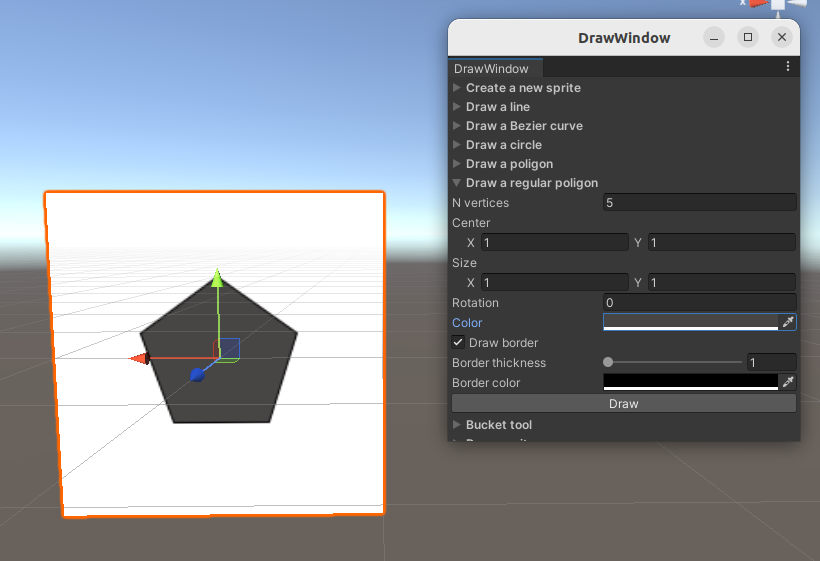
An editor window can be used to edit the textures attached to a SpriteRenderer. To open the window go to Window > Drawer.

The window is divided into sections, which are all self explanatory
Create a new renderer
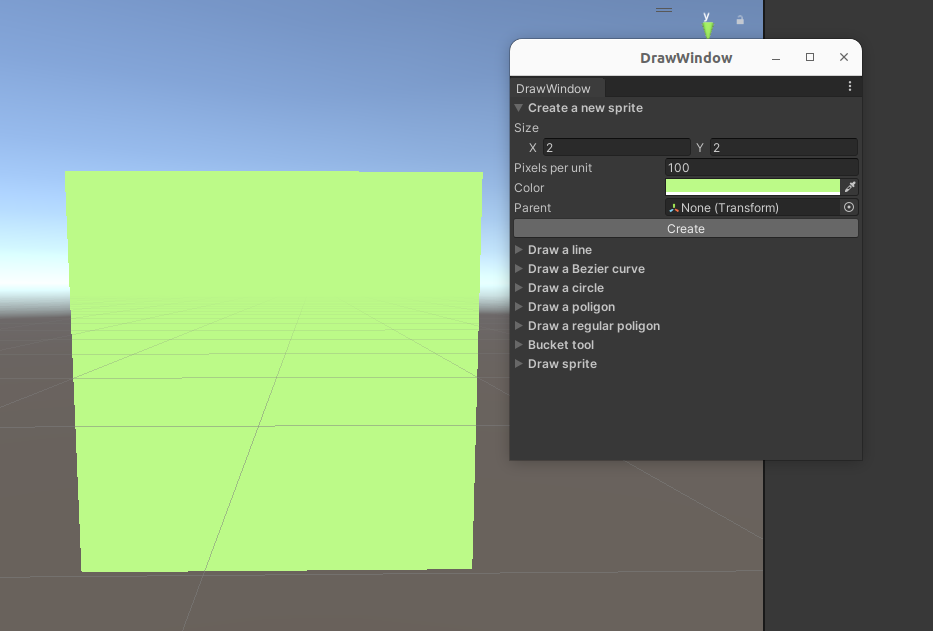
For example, in the first section you can create a new SpriteRenderer with an monocolor texture attached.
All the parameters are pretty straightforward to understand, by clickiing on create a new game object will be spawned with the desired texture.
Drawing on the renderer
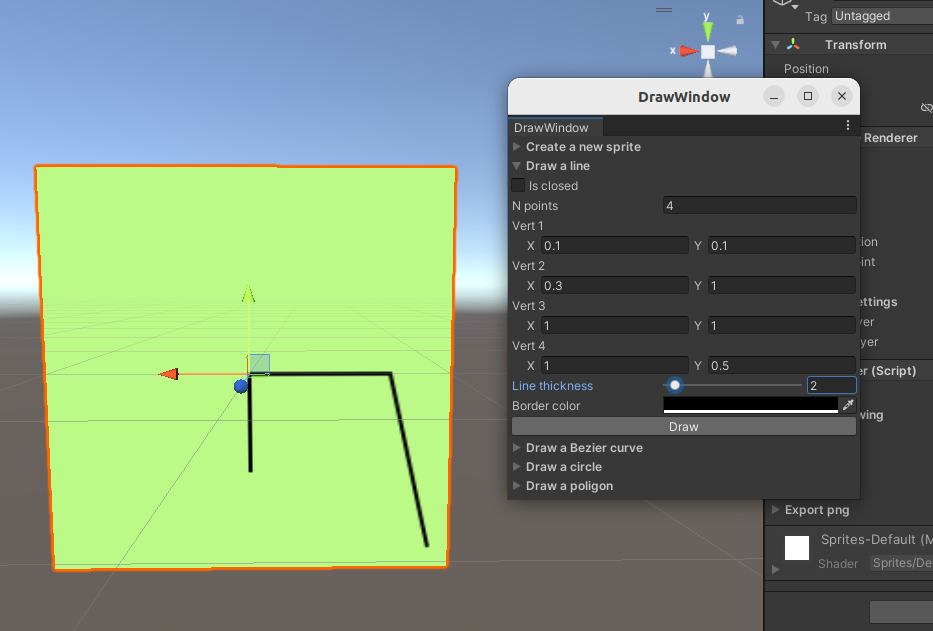
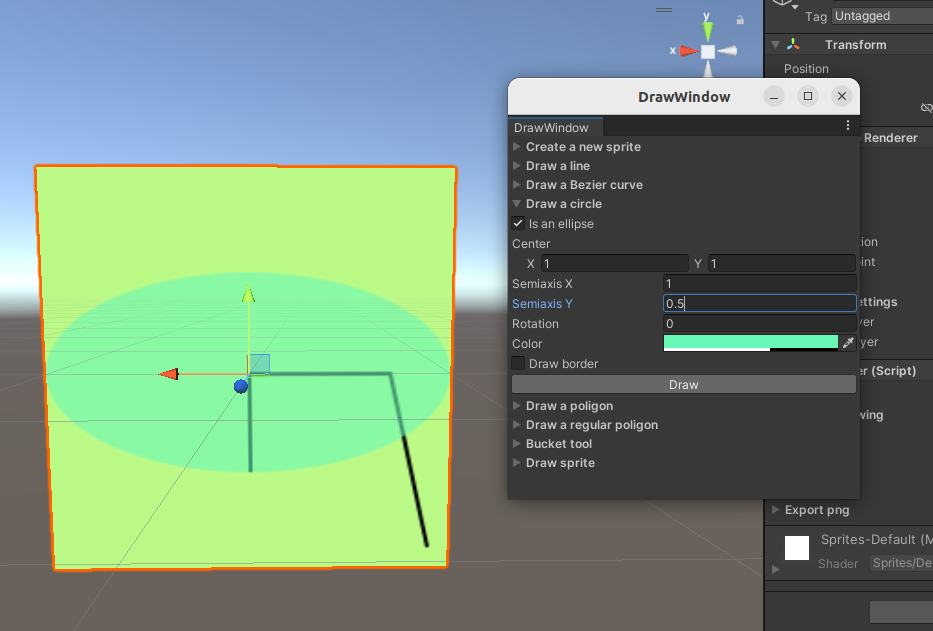
All the other sections of the window allows you to draw geometric objects on the SpriteRenderer. As an example, we create first a broken line and then a semitransparent ellipse. The coordinates are always in world units with the origin in the bottom left corner of the texture. However, Unity reflects the x-axis and therefore the origin will be at the bottom right. This is no longer true when you export the image. Note that you have to select the SpriteRenderer on which you want to draw, otherwise nothing will happens.
Merging a sprite on the top of another
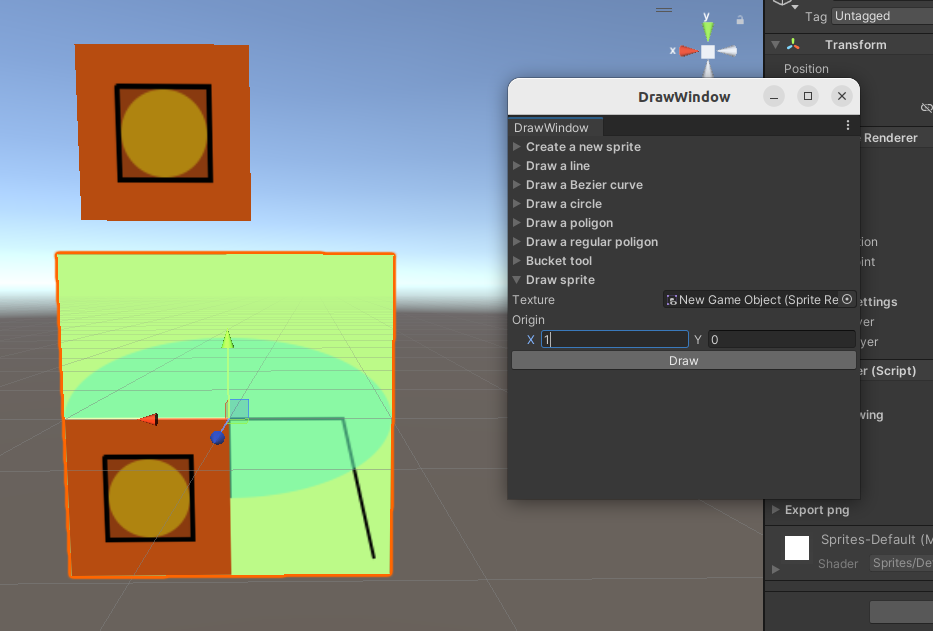
In the last section of the Drawer window, you can select a SpriteRenderer in the scene and drag it to the texture field. When you press the Draw button, this sprite will be drawn on the top of the selected SpriteRenderer. The Origin field will set the coordinate of the drawn texture in the frame of reference of the background texture.
Undoing and transfroming the shape
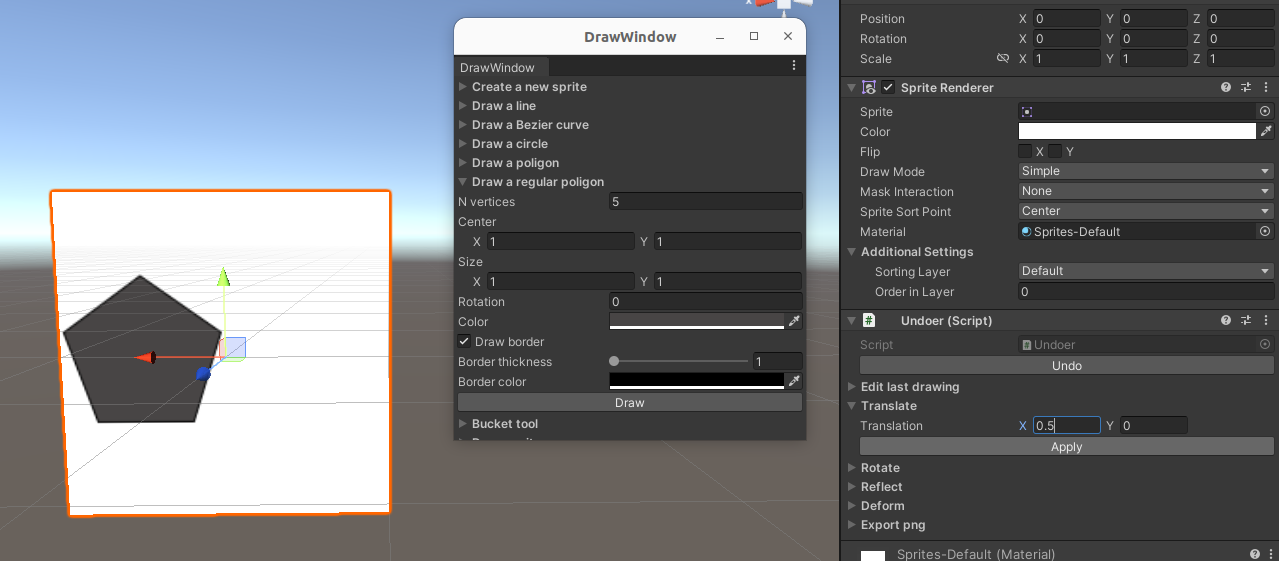
You can edit the last shape or texture you drew with the Undoer component. This component is added to the SpriteRenderer gameobject whenever you draw something on it with GeomDraw (from script you can choose not to do it). The component window allows you to undo the draw or geometrically transform it. You can also choose to save the image from the Undoer menu.